Feature
AI contract review software with clause-level findings
LegalDoc's AI contract review software reads an uploaded contract and saves a report for a human reviewer: clause findings with a risk level, rationale, suggested language and confidence, plus an overall risk score. This page shows the accepted inputs, an example of the output, how failures are handled and where the review stops.
Supported inputs and limits
Review accepts one text-based contract file per upload. These are the current limits enforced by the upload and processing steps.
| Accepted file types | PDF with a text layer, DOCX, plain text (TXT), Markdown and JSON. Legacy .doc files must be converted to DOCX first. |
|---|---|
| File size | Up to 20 MB per upload. Empty or incomplete files are rejected. |
| Contract length | Up to 160,000 characters of extracted text per review. Split longer contracts into sections. |
| Scanned documents | No OCR is performed. Upload an OCR-enabled PDF or a DOCX or text version. |
| Consent | You must accept AI processing consent before the upload is accepted. The consent is recorded with the review. |
| Jurisdiction hint | Optional: United States, United Kingdom or Canada. Otherwise the review runs with the jurisdiction unspecified. |
| Findings per review | Up to 25 prioritized findings. |
| AI usage | Hourly and daily usage limits apply to each user. Larger contracts and retries use more of the daily allowance. |
From upload to saved report
Each review moves through queued, processing and then complete or failed. You can leave the page; the report is saved to your review library either way.
Step 1
Upload with consent
Choose one file, optionally set a jurisdiction hint, and accept AI processing consent. The file is stored and a review is created with status queued.
Step 2
Text extraction
The worker extracts text from the PDF, DOCX or text file. If no readable text is found, the review fails with a message explaining how to fix the file.
Step 3
Clause analysis
The extracted text is analyzed with instructions to treat the contract as evidence rather than instructions, to avoid inventing citations or conclusions about enforceability, and to state uncertainty.
Step 4
Saved report
The review moves to complete with a summary, an overall risk score from 0 to 100 and the findings. It stays in your review library until you delete it.
What a finding looks like
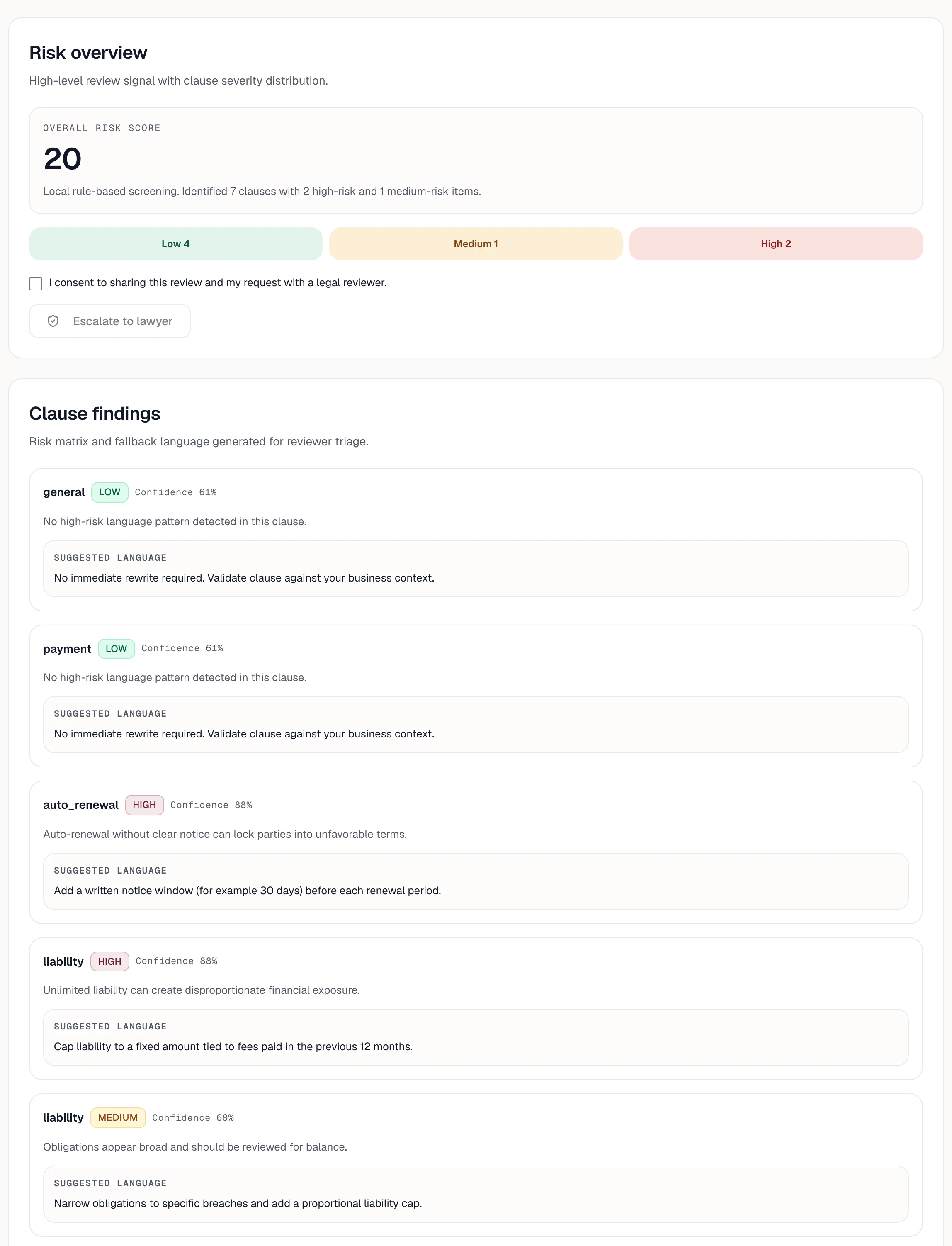
Every finding has the same five fields. The two rows below are an illustrative example written for this page, using a fictitious services agreement with Northwind Ltd. They are not output from a customer contract.
| Clause type | Risk | Rationale | Suggested language | Confidence |
|---|---|---|---|---|
| liability | High | Section 9 states that Northwind Ltd "shall be liable for all damages without limit" arising from the services. Uncapped exposure may be disproportionate to the fees; confirm whether a cap was intended. | Each party's aggregate liability under this Agreement shall not exceed the fees paid or payable in the twelve months before the claim arose, except for the excluded claims listed in Section 9.3. | 0.82 |
| auto_renewal | Medium | Section 12 renews the term automatically for successive one-year periods. No notice window for non-renewal is stated, so the cancellation date may be unclear. | Either party may prevent renewal by giving written notice at least 30 days before the end of the then-current term. | 0.71 |
The report also shows a short summary, the number of findings, the high and medium risk counts and the overall risk score. Confidence runs from 0 to 1 and reflects the model's own certainty, not accuracy measured against a lawyer.
How failures are handled
Problems are reported on the review rather than silently dropped. A failed review keeps its reason so you can fix the file and upload again.
| Cause | What you see |
|---|---|
| File larger than 20 MB | Upload refused before processing. |
| Unsupported file type (for example .doc or an image) | Upload refused with the list of accepted formats. |
| No consent given | Upload refused until AI processing consent is accepted. |
| No readable text (for example a scanned PDF) | Review marked failed with instructions to upload an OCR-enabled PDF, DOCX or text file. |
| Extracted text over 160,000 characters | Review marked failed with a prompt to split the contract into sections. |
| AI usage limit reached | Review marked failed with a usage-limit message. Upload again after the hourly or daily window resets. |
| Any other processing error | Review marked failed with a reason and the review ID to retry or quote to support. |
What you can do with a completed review
A completed review is the input for several other LegalDoc workflows.
- Review library
- Search saved reviews by filename, page through older reports, reopen findings, and delete an upload together with its findings after confirmation.
- Assistant summary
- Select a completed review as context in the AI assistant to get a summary with high and medium risk counts and the overall score.
- Review and redline agents
- Turn a completed review into an action list for high-risk findings, or a list of suggested language for every medium and high finding.
- Lawyer request
- Submit a separate lawyer request with its own consent, a jurisdiction and an urgency. You can see its status (queued, matched or closed). A request does not create legal representation.
See the AI legal assistant and the review and redline agents for those steps.
Where human review takes over
The review helps you find and prioritize clauses. A person still decides what is acceptable. It is not designed for:
- A legal opinion. Findings are review signals for a person who decides what to change.
- Your own negotiation playbook. Findings are not scored against custom positions you upload.
- Editing the uploaded file. Suggested language is text you copy into your own draft; no tracked-changes document is produced.
- Scanned or image-only contracts, bulk uploads, or contracts longer than the character limit in a single review.
For a manual pass alongside the findings, use the contract review checklist. Comparing vendors? The AI contract review software buyer's guide lists questions to ask any provider.
Questions about contract review
Which file types can I upload for contract review?
PDF files with selectable text, DOCX, plain text, Markdown and JSON, up to 20 MB. Convert .doc files to DOCX and run OCR on scanned PDFs before uploading.
What does the overall risk score mean?
It is a 0 to 100 signal produced with the findings to help you prioritize. It is not a probability or a legal conclusion, and two contracts with the same score can need very different attention.
Can I delete an uploaded contract?
Yes. Deleting a review from the review library removes the uploaded file and its findings after you confirm.
Do I need a subscription to run a contract review?
No. Contract review does not require a subscription, but hourly and daily AI usage limits apply. A subscription is required for PDF and DOCX exports and for sending signature requests.
Next: paste contract text into the free contract summary generator, compare plans and AI usage limits or book a demo with a sample agreement type.